
WhatsApp is an app which works across platforms. In fact, even affordable feature phones support the app. But every now and then, WhatsApp does fish out a list of old phones for which support is discontinued and if you have an old phone lying around as a backup, you might want to read on.
The super popular messaging app is basically ending support for a number of older operating systems which means that users won't be able to create new accounts or reverify existing accounts on a number of old phones. WhatsApp in a post on its FAQ page now mentions that users of phones running Android version 2.3.7 and older, as well as iPhones running iOS 7 and older, will no longer be supported after February 1, 2020.

This update shouldn't affect you unless you're have an old iPhone or Android phone lying around as a worst-case-scenario backup. But this is WhatsApp's way of suggesting that they won't be supporting age old phones forever.
No support for iOS 8!
You can still use WhatsApp on iOS 8, but if you reinstall the app, you will no longer able to verify your account.
The iOS 8 compatibility will be fully removed in February 1, 2020.
Windows Phone is confirmed to be deprecated after December 31, 2019.
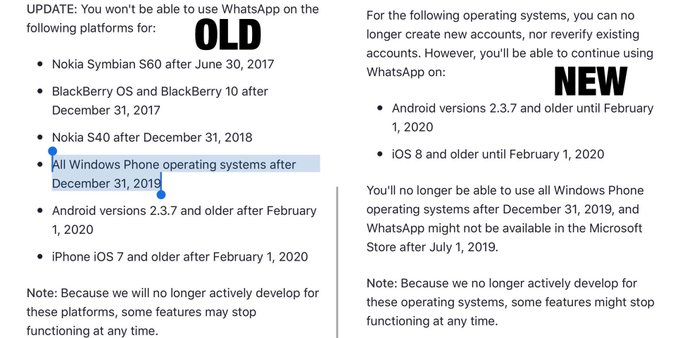
Accoding to a tweet posted by WABetainfo, WhatsApp will also no longer support devices running on iOS8. However, users can still use WhatsApp on iOS 8 but won't be able to verify the account if they reinstall it.
The latest/updated FAQ WhatsApp also asks feature users to switch to phones running KaiOS 2.5.1+, including JioPhone and JioPhone 2.
ALSO READ: Share your WhatsApp status to Facebook [New feature]
WhatsApp has been adding up new features regularly and some of these features require powerful phones and newer Android and iOS versions to function properly. Features like picture-in-picture video within chats, fingerprint authentications etc are resource heavy and require powerful phones with enough RAM and newer OS. WhatsApp has said that some of the phones won't be able to support the feature that it plans to bring in future and that is why it is ending the support for them.
"We'll no longer actively develop for these operating systems; some features might stop functioning at any time. If you currently use an older operating system, we recommend upgrading to a newer version...," WhatsApp said on its support page.
Comments
Post a Comment
Type message here